These instructions can only be used with custom domain names that have been set up at a domain name provider such as GoDaddy. In addition, we cannot support any issues you have with the Cloudflare service. These instructions are provided as-is and may not apply to all domain providers. Any setup issues need to be addressed to Cloudflare not Enfold Systems
What is Cloudflare?
Cloudflare is a free CDN type product that protects against threats such as SQL injection and identity theft. Cloudflare also improves site performance and speeds up loading times by using their multiple data centers that are located around the world. The Cloudflare network acts like a giant VPN. This means that a site visitor will access your website by being physically redirected to the closest server. What this means is simple: the closer the data center, the faster your website will load for the user.
Prior to these instructions, you will need to go to https://www.cloudfare.com and create an account.
Step 1: Add the domain.
After logging in to Cloudflare, you will see a message saying that you don't have any domains,
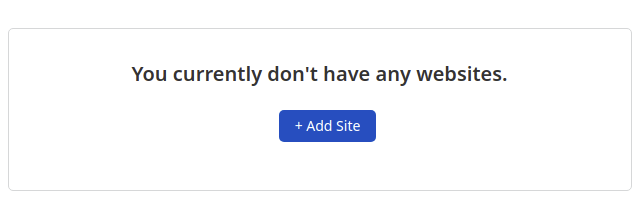
Click on the "+Add Site" button. You will be presented with a form where you need to enter the naked domain (In our example, yourdomain.com). Note: a naked domain is the domain name minus the WWW
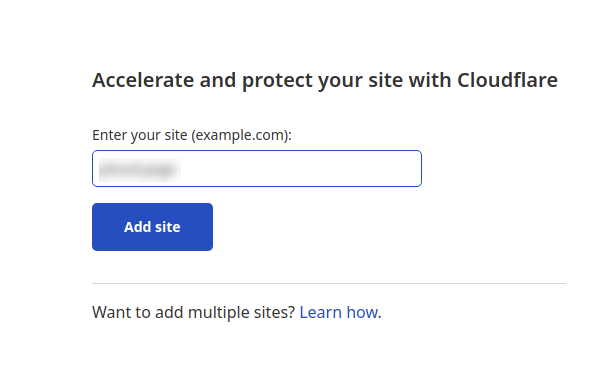
Next, you select a Plan, the free one is at the bottom.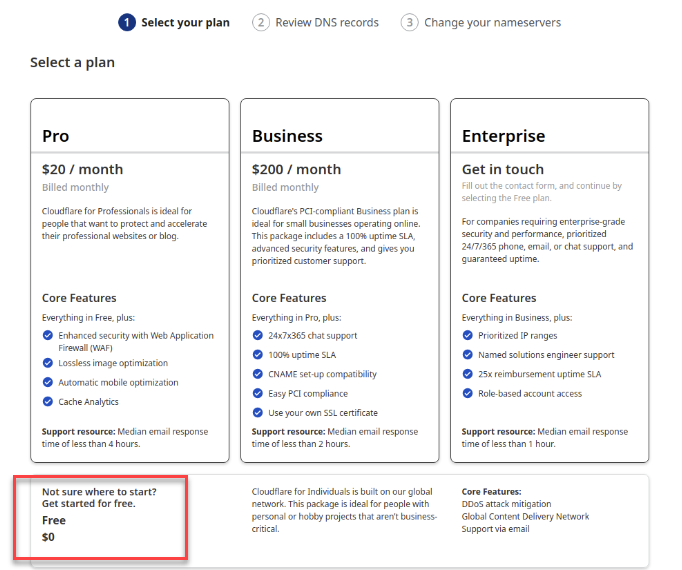
Step 2: Add CNAME record.
Once the domain is created, you can add a CNAME for the www subdomain, pointing at endpoints.ploud.net
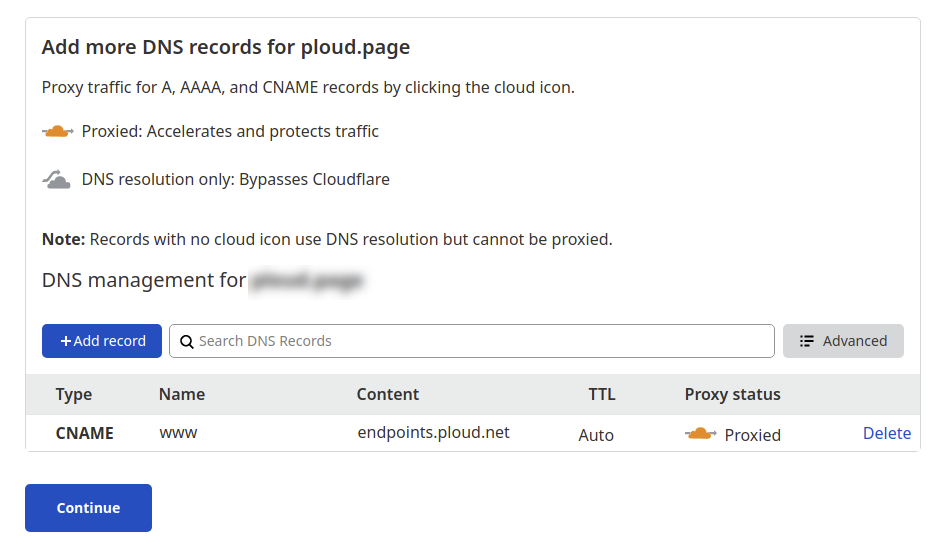
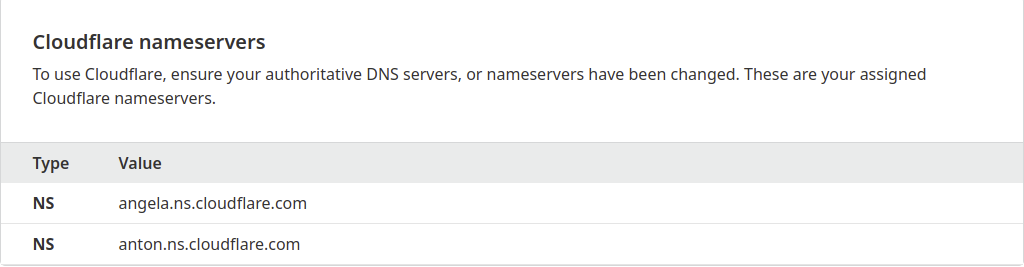
Step 3: Configure the Nameservers ;
Cloudflare will display the names of the names servers that need to be set up at your domain provider such as GoDaddy as an example. (The name servers in the image below are only examples and your name servers could be different)
Step 4: Make sure under "SSL/TLS", that the encryption mode is set to "Full"
That should be it, once everything is configured properly, you should see a message "Great news! Cloudflare is now protecting your site" under "Overview"
Notice that DNS changes could take 24 hours to propagate, so it could take longer to work.
Was this article helpful?
That’s Great!
Thank you for your feedback
Sorry! We couldn't be helpful
Thank you for your feedback
Feedback sent
We appreciate your effort and will try to fix the article