In Ploud you can copy and paste objects such as pages, cover pages and events and much more. By using the copy and paste buttons that are displayed at the bottom of a folder contents view.
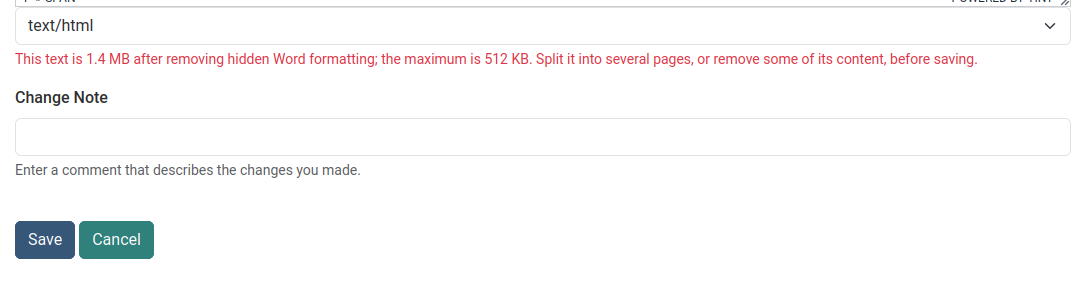
Note: when copy and pasting on to a page such as from word there is a text limit of 512kb. if you exceed this limit you will get an error as shown in the image below. One solution to this is to break up the content you are pasting into several pages. The better solution to putting large amounts of information is to simply create a document in .DOC or .PDF and upload the file. You can upload a file by using Add-New -->File or by using the bulk method.
The error you will see if you exceed the paste limit.
Now how to Copy & Paste Instructions
1.) On any view of a folder you will see on the green options bar the tab "Contents"

2.) Select the "Contents" tab to display the contents of a folder. The contents displays much like the directory structure you see in Windows. Icons indicate what type of object is listed such as folders and pages.
3.) To select an object to copy check the box to the left of the item.

4.) At the top of each content page are option buttons. Click the "Copy" button.
At the top of the folder contents page in the "Info" bar it informs you of a successful copy.

5.) You can now "Paste" the copied object anywhere in the site in the folder contents view by clicking on the "Paste" button. The object can also be placed within the same folder.
Note: all new objects whether copied or newly created will be placed at the end of the folder contents pages.
Was this article helpful?
That’s Great!
Thank you for your feedback
Sorry! We couldn't be helpful
Thank you for your feedback
Feedback sent
We appreciate your effort and will try to fix the article