Once a Mosaic page has been created you are ready to add Tiles to the Mosaic page.
Overview
The Mosaic Rich Text Tile provides a dedicated space on a Mosaic page for composing and displaying formatted content. It uses the TinyMCE editor to deliver a familiar, feature-rich editing experience while storing content as HTML that renders in the tile on the live page.
Key features
- WYSIWYG editing powered by TinyMCE inside a Mosaic tile
- Content stored as HTML for flexible rendering in templates
- Common editing tools for text formatting, lists, links, images, and tables
- Configurable toolbar and plugins to suit authoring needs
- Accessible editing with keyboard shortcuts and focus management
How it works
- A Rich Text Tile is added to a Mosaic page.
- The tile initializes TinyMCE on its editable field, providing a full editing surface.
- Edited content is saved as HTML and rendered by Mosaic in the tile’s display area.
- Site-level configuration controls which plugins and toolbar options are available.
If you have not clicked on Customize and you do not see the Format & Insert tab like in the image select Customize.
 Now you should see the Tabs Format & Inset on far right

To see all the different tiles that can be added using the Insert function select the drop-down to view all your options.
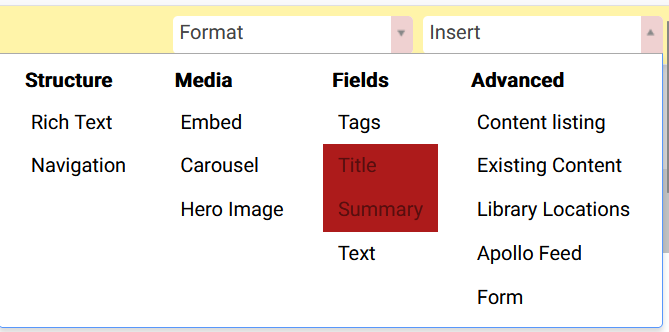
Hint: You can add row indicators to your page to help with adding tiles. The row indicator only show in edit mode and is not displayed in the browser after saving and then viewing the page. This in placing your tiles and making sure it is going to a new line or will add column if a tile is placed in an a row already containing a tile.
To activate this function press ALT on your keyboard.
The indicator can be any color which is determined by the template you use. In this case the indicators are red.
When adding any tile from the Insert tab in Windows you only need to click the mouse button once. (Do not try to drag the word down by holding the left mouse button down.)
Once you have done a single left click on a tile such as Rich Text then use the mouse to place the tile on the page where want the tile. A green line appears when a valid place is detected to drop a tile by clicking the left button once more.
A video example of adding a Rich Text tile to a Mosaic page and also creating a column within a row.
Note: The horizontal line indicates the tile will drop with in a row. When the line is vertical it will drop the tile in the same row creating a column in that row.
To save your work select the Save button on the left.
The tiles : A list of the tiles and their purpose.
Structure
Rich Text - the most common tile used this tile can contain images, text and scripts (widgets)
Navigation - This tile will place links that allows a user to Navigate within a folder.
Media
Embed - This tile allows you add a link for a video such as a You Tube video (this accepts a URL link only not Iframe HTML code)
Carousel - This tile is used for revolving Images or manually selected images that can include links for the image.
Hero Image - This tile displays an image with a caption and and a button containing a link to redirect to a item on site or a external site when clicked.
Was this article helpful?
That’s Great!
Thank you for your feedback
Sorry! We couldn't be helpful
Thank you for your feedback
Feedback sent
We appreciate your effort and will try to fix the article