At some point, you may want to add a script or source code to a mosaic page. This could be a resource search for a catalog, videos, and more. Enfold does not support scripts provided by 3rd parties. In other words, if there is a problem with the script not working such as an account issue we don't support that. However, we will help you install scripts and work through any issues Ploud might be doing to prevent the script from running.
All content editing in Ploud uses the TinyMCE editor this applies to pages, portlets, and cover pages. You will recognize that you're using the TinyMCE editor when you see this on your display.
The tile you want to use in Mosaic to add a script is the Rich Text tile found under the insert tab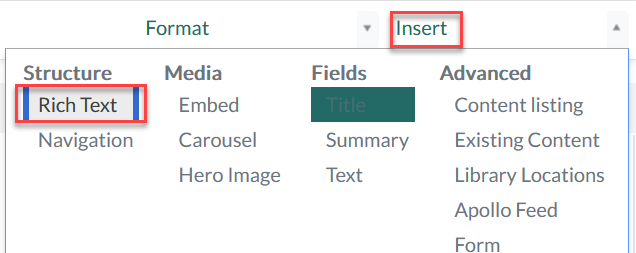
On the ditor tool bar for that rich Text tile select the <> icon
Selecting the source code Icon will open up a the tile and allow you to paste or write your source code. When finished make to select Save.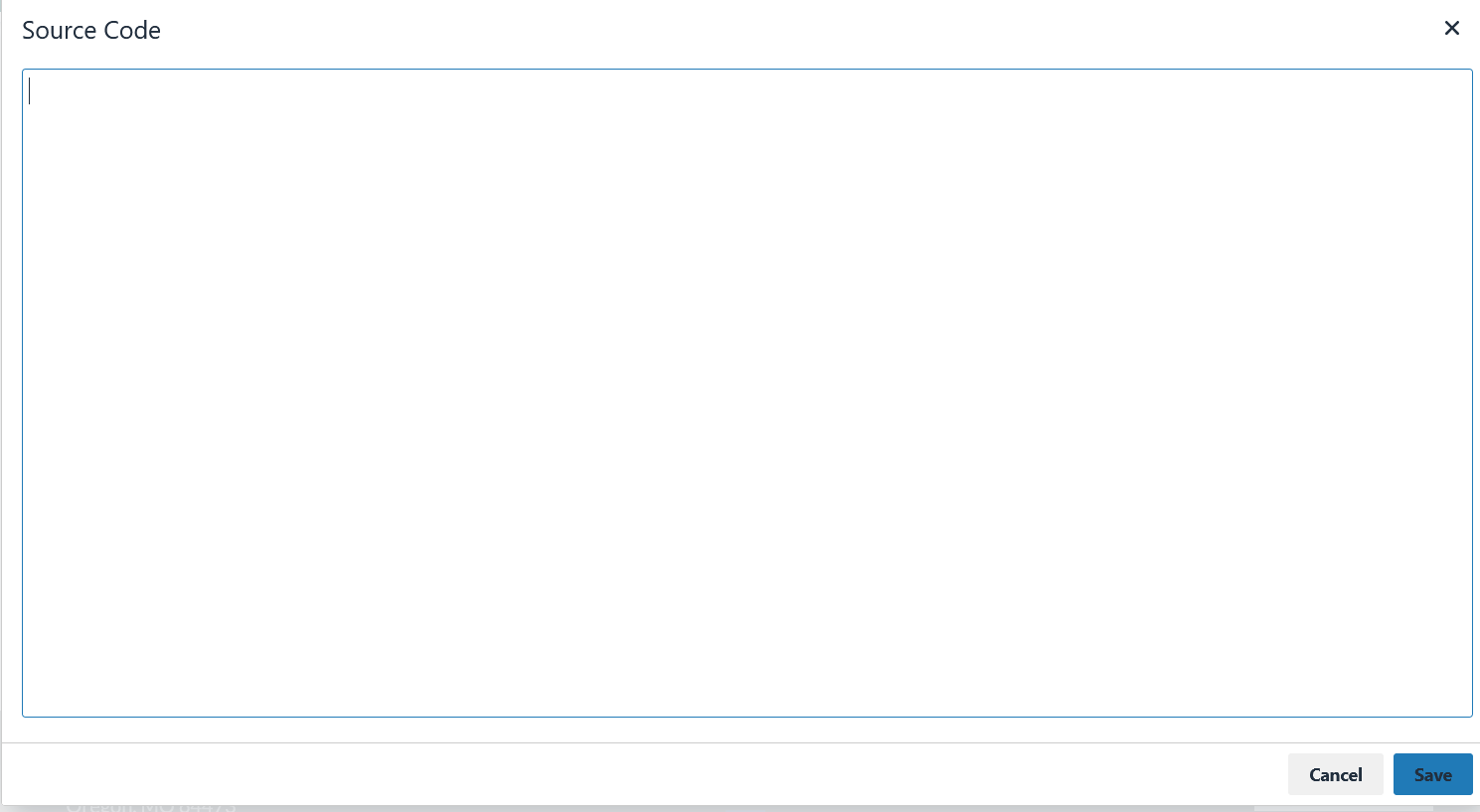
Go back to the Mosaic page and see if the code is working. You may need to save the mosaic page and refresh to see if the code is working.
Its not working what now!
In some cases your code might be blocked by Ploud because it sees it as a security risk. In this case you need to enter a ticket and have enfold see if it can be given permissions to run in Ploud by adding a CSP rule.
NOTE: If you choose to use a 3rd party script and request Enfold to set up a CSP rule to allow the script we assume you trust the source.
NOTE: In rare cases a 3rd party script will not run even when a CSP rule to allow it has been entered. In that case Enfold cannot fix 3rd party scripts to run. However often times the developer of this 3rd party script will make an attempt to fix the issue on their side. You as the webmaster need to do the communicating to that developer. This is out of scope for Ploud support.
Was this article helpful?
That’s Great!
Thank you for your feedback
Sorry! We couldn't be helpful
Thank you for your feedback
Feedback sent
We appreciate your effort and will try to fix the article